Braintrust Tutors
Instructor training

Meet Spark.

The work you already do — scheduling, assessing, teaching, tracking — in one place, with most of it done for you in the background.

First week of school

Everything running through your head in the first week…

Before you’ve taught a single lesson.

Sound familiar?

What did they lose over the summer?
Which kids am I working with?
Who works well together?
When is everybody free?
What are they actually behind on?
Which lesson do I start with?
How many copies do I need tonight?
Where do my notes live for MTSS?
Is any of it working?
How far behind did Johnny get over the summer?
Where can I group Amanda so she’s not so lost?
We’re out copy machine paper. Again.
Did anyone tell the family about this?
Can I move Marcus without redoing the whole schedule?
Who covers my group when I’m out Thursday?
Is this the current version of the lesson?
The parent conference is tomorrow and I have nothing to show.
Did they get this in class already?
Where’s last year’s data for this kid?
Am I supposed to log this in two places?
Is 20 minutes going to be enough?
Two of them can’t read the directions yet.
Do I re-assess or just keep going?
My coordinator wants a progress report by Friday.
Half the group didn’t show up.
Is this the right tier for her?
Nobody told me she has an IEP.

Spark does all of that.

Assessments score themselves. Lessons land on your sessions. Your notes and reports build as you go.

Spark
1
2
Check your groupings (optional)
3
4
5
6
You set the schedule
You launch, Spark assesses adaptively
Spark plans the lessons
You teach and Spark monitors progress
Spark captures your observations
Spark writes the report
1. You set the schedule
The problem

You already have a calendar, but…

The school gives you a block. Working out who meets when, in your own system that nobody else can see, is on you.

So the planning happens twice
Once in your head or your notebook, once in whatever the school asks you for.
And your dosage is a guess
Six months later someone asks how many minutes each student got. You go counting.
Spark is not asking you to plan twice
You set it up once here, and the rest of the loop runs off it.
1. You set the schedule
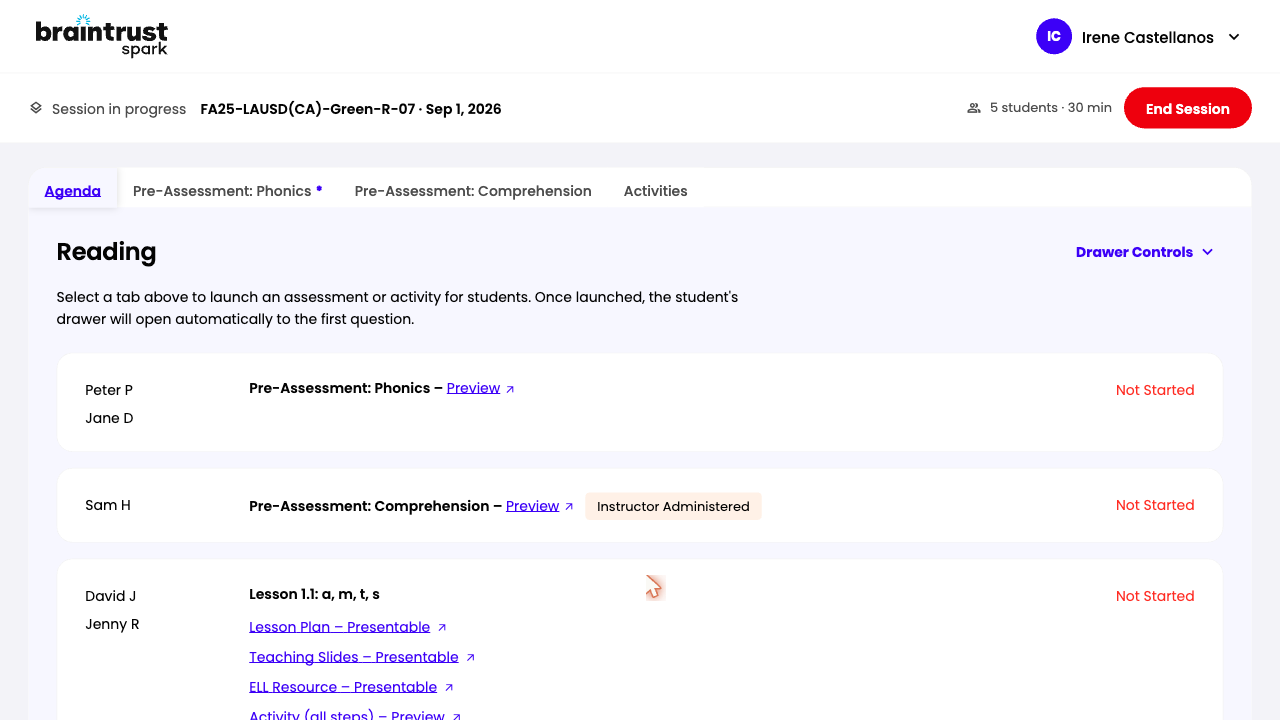
Watch me do it

Build your schedule once. Set it to repeat.
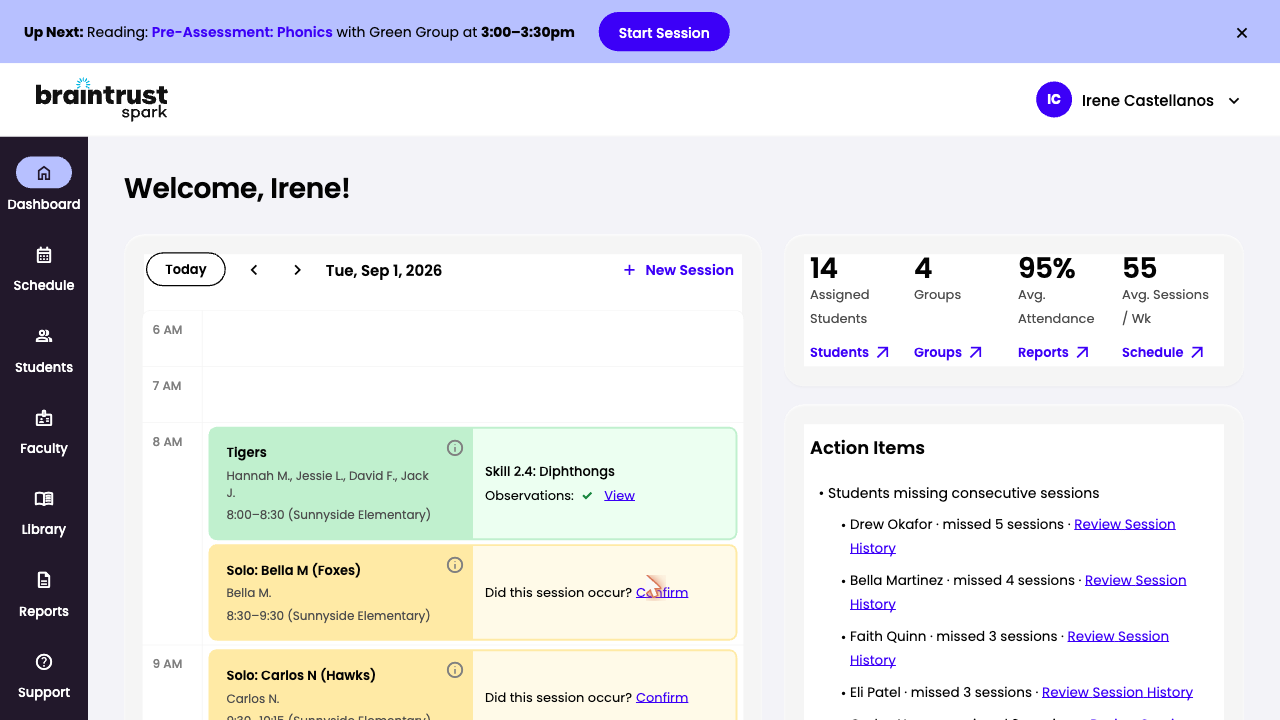
1 After your students are loaded, you pick who meets together, the days and the times.
2 Setting the schedule is what creates the group. Sessions land on your dashboard in time order.
3 Because it is on the calendar, Spark counts your minutes for MTSS and puts the right lesson on each session for you.
4 Your dashboard is more than a calendar — today’s sessions, your students and what needs attention all sit on it.
Open Demo
New Session preview
1. You set the schedule
Now you try

Build your schedule.

You're in the Spark demo with a sample roster already loaded. Nothing you do here touches a real student. Ask as you go — this is the one to get right.

1 Go to Schedule and click New Session.
2 Add the students who will work together — that creates the group.
3 Set the day, the start time and the length.
4 Turn on repeat and pick your days — Mon / Wed / Fri.
5 Save, then open Dashboard and find it under today.
2. You launch, Spark assesses adaptively
The problem

You know they're behind. You don't know on what.

A grade-level assessment tells you a third grader did badly. It doesn't tell you the skill it broke down on.

The gap is usually below grade level
First and second grade skills aren't on a third grade assessment, so they never get checked.
Then it's weeks of your time
Administer, grade, interpret, group — one student at a time, before you teach anything.
With Spark it takes about an hour
And you don't grade or interpret any of it.
2. You launch, Spark assesses adaptively
Watch me do it

The assessment finds the gap, then stops.
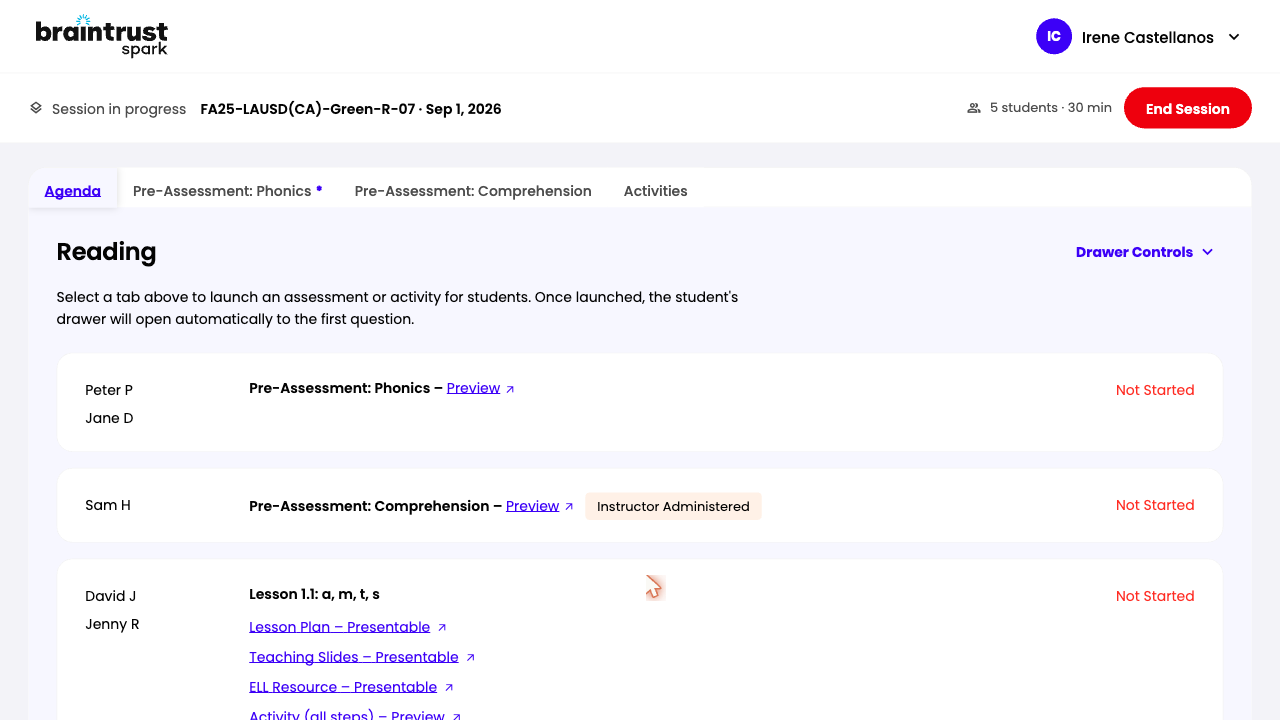
1 You launch it from the first session on your calendar. Students take it on their own devices.
2 It starts below grade level and climbs. When a student misses a few in a row, it stops — no agonizing three-hour assessment.
3 Phonics is teacher-led — you drive it and mark their answers. Literacy is student-led. Comprehension is a passage with questions, for older students. Either way it scores itself.
4 Once the group is done, the results page tells you where each student starts — and what the group has in common.
Open Demo
Pre-assessment preview
2. You launch, Spark assesses adaptively
Now you try

Launch a pre-assessment.

Back in the demo, use the group you just made. Launch it and watch the results come in while students work.

1 In the Up Next banner on your Dashboard, click Start Session — or open the event on your calendar and click Join Session.
2 Open the pre-assessment tab (the drawer looks different depending on which assessment you are conducting).
3 Check who it's launching for, then click Launch for students.
4 Watch the student column fill in as answers come back.
2B. Check your groupings
Optional · any time

Adjust groups any time if needed.

Your roster holds every student assigned to you. Once the pre-assessment results are in, Spark compares where each of them currently is and recommends how to group them.

Open Demo
All your students, side by side
The roster covers every student assigned to you, not one group, and compares the gaps and current level of knowledge across all of them.
Spark recommends the groups
Take the recommendation as it comes, move students manually, or let Spark assign them automatically by skill and grade.
It keeps updating all year
Come back whenever you want to check whether every student is still grouped where they should be.
3. Spark plans the lessons
The problem

Planning is the part that follows you home.

You pull from three programs, make the copies, and build tomorrow’s lesson at nine at night.

Nothing lines up
The assessment says one thing, the program you have on the shelf says another.
Copies are their own job
Paper, laminating, cutting, and it starts again next week.
Spark builds it off the assessment
Not just the first lesson after the assessment — every session, off everything Spark has seen since.
3. Spark plans the lessons
Watch me do it

The lesson is on the session before you open it.
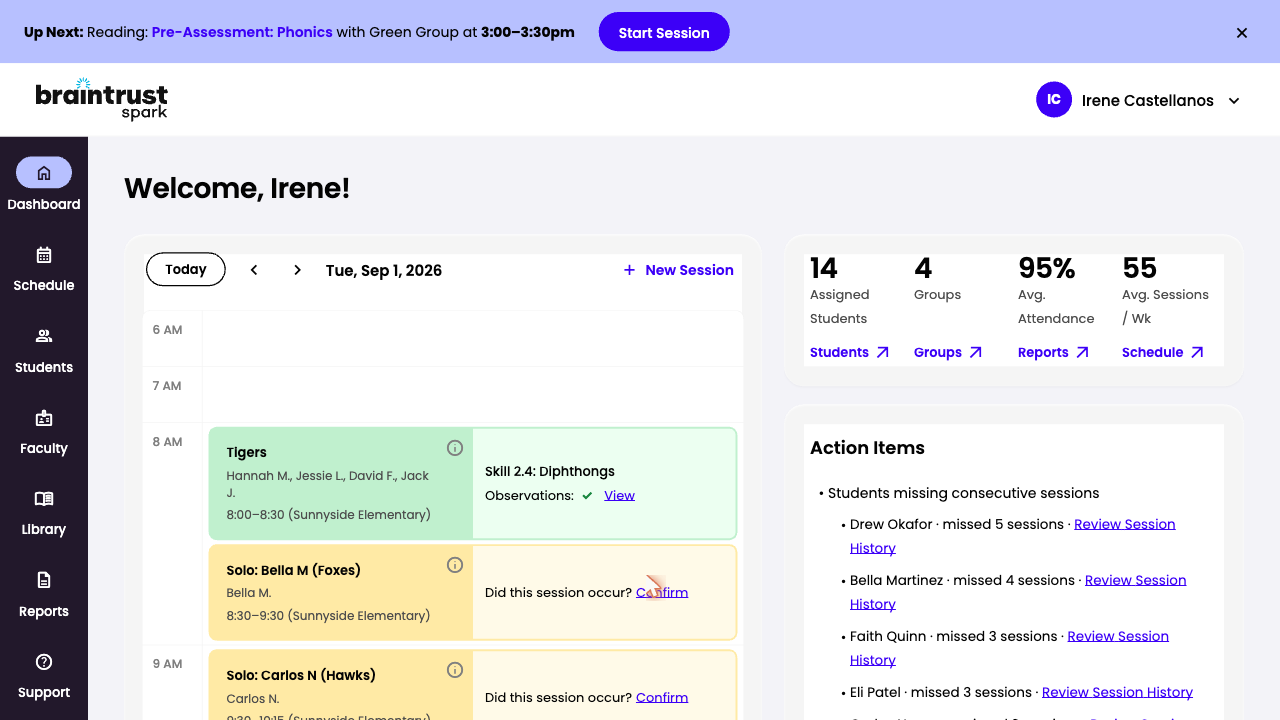
1 Spark reads the assessment result and picks the next lesson in the sequence.
2 It plans one session at a time, always off the last one you taught.
3 Slides, plan and student materials come with it. You can look any time — we walk through all of them in the next step.
4 Didn't finish, or the group is not at mastery? The whole lesson is reassigned as a reteach.
Open Schedule Open Curriculum Library
Dashboard with auto-assigned lesson preview
3. Spark plans the lessons
Now you try

Open the next session.

Look at what Spark chose and why. You will get the full tour of the materials in the next step.

1 Open Dashboard and open the next session on your calendar.
2 Read the lesson title and the skill it targets — nobody assigned it, Spark did.
3 Look at the next few sessions on the group’s schedule — each one already has its lesson.
4. You teach and Spark monitors progress
The problem

Teaching and tracking are two jobs at once.

You are running the lesson and trying to hold onto who struggled, in the same thirty minutes.

You lose the detail
By the time the session ends, the specifics are gone.
Scaffolds are improvised
You decide on the spot what to do for the student who is stuck.
Then you grade it all
Worksheets to review, feedback to write, scores to enter — after the session is already over.
The session is the measurement
The activities students do are how progress gets monitored, week over week — run from a suite of built-in teaching tools and automatically graded by Spark.
4. You teach and Spark monitors progress
Watch me do it

You teach, Spark handles the rest.

1 Launch the session. Lesson or assessment, everyone is already assigned — open the tab and go.
2 Students work the activities with you, so you see who is getting it while you are still in the room.
3 Scores come in live while they work, so every session becomes a progress-monitoring point without you recording anything.
4 When the drawer shows a concept is not landing, you’re not left to improvise — the lesson plan includes built-in scaffolds as well as what students are likely to get wrong (misconceptions).
5 Teaching in person? A QR code on the lesson plan puts your presenter notes on your phone.
Open Demo
In-session preview
4. You teach and Spark monitors progress
Now you try

The teaching part — this is where you shine.

Run the session as if the students were here. See where they struggle, then find what Spark already gave you to fix it.

1 Open the session and click Start.
2 Preview the materials, then open the misconceptions view on the lesson plan.
3 Move into the activity and watch the drawer. Find the question most of the group missed.
4 Open the highlight evidence scaffold and talk that answer through the way you would with students.
5 Leave the session open — we come back to it next.
5. Spark captures your observations
The problem

The notes get written twice, or not at all.

Once for you, once for whatever the school asks for, usually days later when the detail has faded.

It lives on a Post-it
Or in a running Google Doc you will have to reconcile at the end of the year.
The reteach gets lost
You meant to go back to it. Nobody wrote it down.
Spark has already recorded it
Mastery comes from the activities students did with you. All that is left is what only you saw.
5. Spark captures your observations
Watch me do it

The scores are already in. All you add is the color.
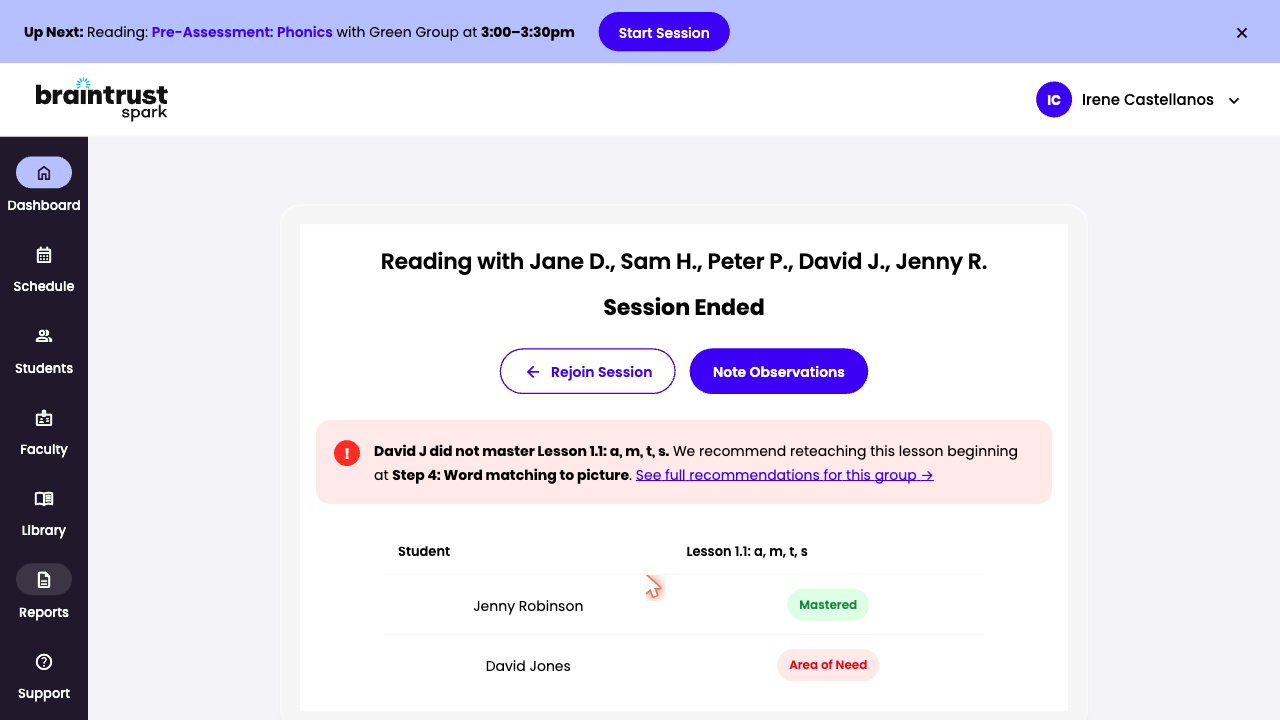
1 End the session and Spark shows who mastered the skill and who needs it again.
2 Spark records that for you — it comes from the activities students did with you.
3 If the group is not ready to move on, Spark reassigns the whole lesson as a reteach, and the lesson plan tells you how to teach it differently next time.
4 Optionally log what Spark cannot see — participation, effort, behavior — straight into the MTSS record.
Open Demo
Session Ended preview
5. Spark captures your observations
Now you try

Close out the session you just taught.

Notice how little you have to enter. Observations can also be added from your dashboard any time after a session closes.

1 Click End session.
2 Read who mastered the skill and who needs it again — Spark filled that in.
3 Add an optional observation now, or at the end of the day.
4 Save, then open the next session and find the reteach already assigned.
6. Spark writes the report
The problem

The report is a weekend project.

Someone asks for minutes, growth and evidence, and you go back through six months of your own handwriting.

The data is in four places
Your notebook, the assessment platform, the calendar and your memory.
And every one of you does it differently
Your process lives with you. When you leave, it leaves, and nobody can see across the school.
Spark writes it as you go
Every session you close is a line in the report. There is nothing to assemble later.
6. Spark writes the report
Watch me do it

The MTSS paperwork writes itself.

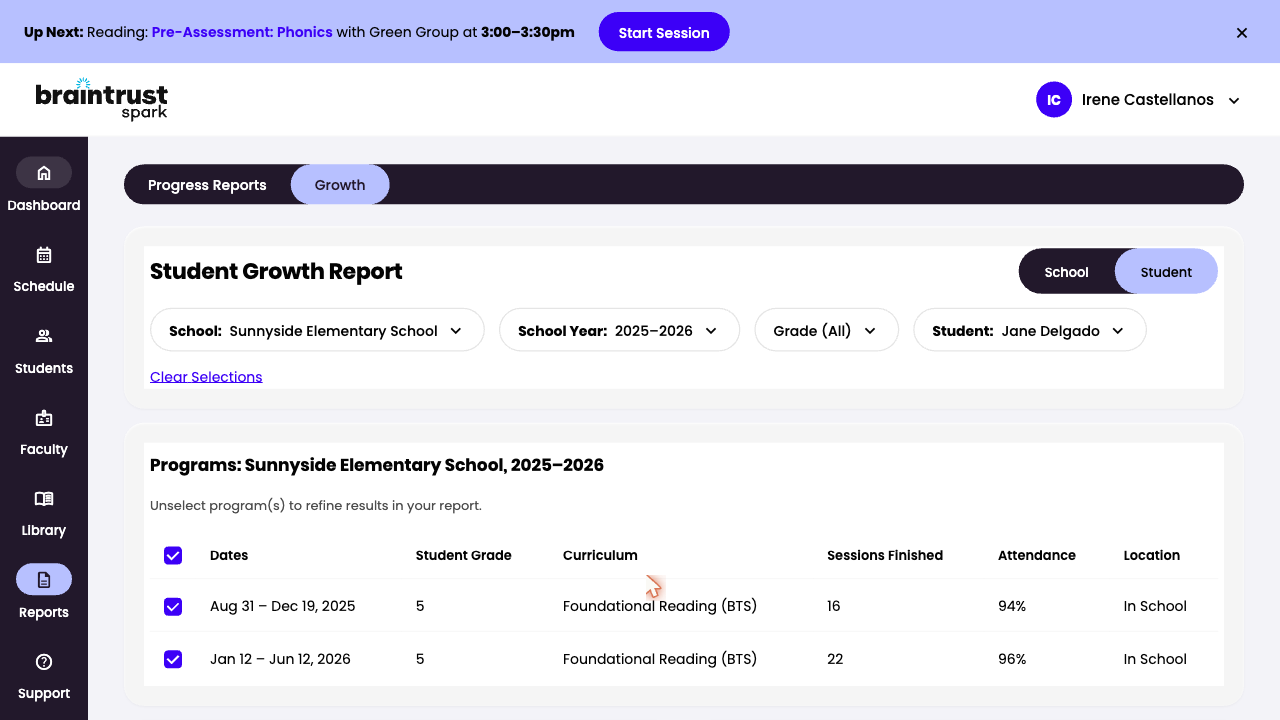
1 Open any student and the report is already there — growth, minutes, session history. Nothing to gather first.
2 Every session, note and assessment result rolled into it. Minutes come from the calendar, not your memory.
3 From there it rolls up: your coordinator opens the school report built from the same data, and exports it for compliance.
Open Demo
Student Growth Report preview
6. Spark writes the report
Now you try

Go find Jane Delgado’s progress.

Start at the school report and work down to the student. Everything you need is already in there — the practice is knowing where to look.

1 On the school report, scroll the student list and find Jane Delgado.
2 Click her name to open her student report.
3 How did she do on her math assessment, and how much has she grown since the pre-assessment?
4 Find her grade-level performance and her session minutes, then click back up to the school report.

That’s the whole loop.

Spark does what software is good at. You do what only a teacher can.

Spark
1
2
Check your groupings (optional)
3
4
5
6
You set the schedule
You launch, Spark assesses adaptively
Spark plans the lessons
You teach and Spark monitors progress
Spark captures your observations
Spark writes the report

We're with you all year.

Start with the help bot inside Spark. It answers from our help documentation, day or night.

For human help, please contact your CSM.

Open Spark Help