
Reviewing Assessment Results
While students are working through an assessment in a session, you can follow along in real time from the panel that opens alongside it. The live assessment view is a per-student status readout rather than an answer-by-answer look, so it tells you who’s finished and who may be stuck. Activities and assessments you administer yourself do show individual answers, and both are covered below.
During the Session
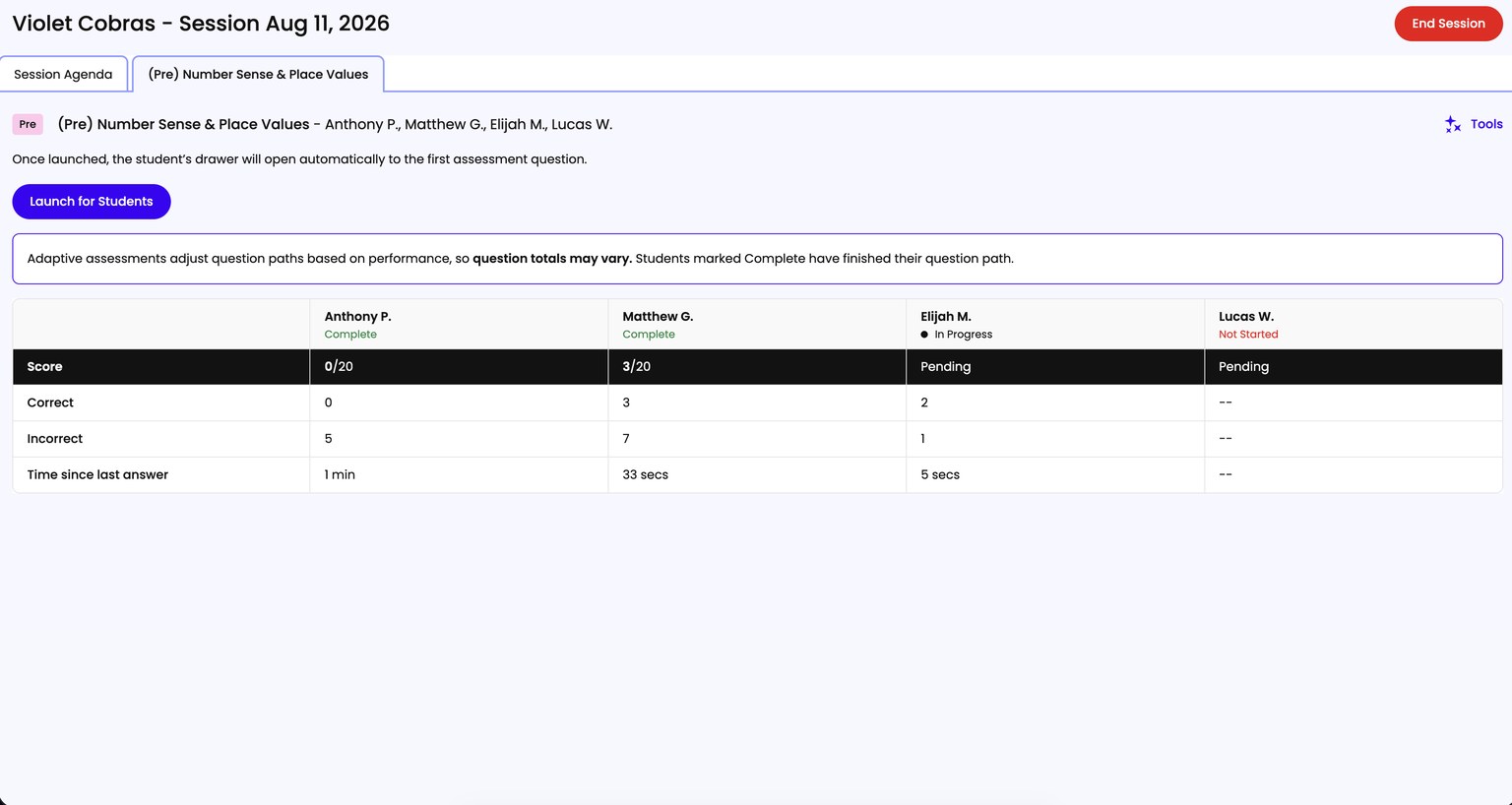
Each assessment gets its own tab, titled with the assessment’s name. Open it and you’ll see a launch button for the students taking it, along with a note that once launched, each student’s screen opens automatically to the first question.
Once you’ve launched it, a live results table appears below with a row per student and these columns:
- Student - name.
- Status - Not Started, In Progress, or Complete, with a running count of questions on the student’s path (like “9 of 12 questions”) once they begin. Complete means the student has finished their own path.
- Correct and Incorrect - how many they’ve answered each way. Read
--until they start. - Time since last answer - how long since their most recent submission. Ticks live and turns red past 45 seconds, so a stalled student is visible without hovering over their shoulder.
Because assessments adjust the question path based on how a student answers, the total number of questions can vary from student to student. A note above the table calls this out and reminds you that Complete means the student finished their own path.
Assessments You Administer Yourself
Some assessments you read aloud and score as you go. Those tabs let you pick which student you’re working with, and give you a Launch for Student button for them. Choosing a student opens their questions so you can record answers. Choosing View All Results instead gives you the same live results table described above.
Activities Work Differently
Activities share a single Activities tab and you choose between them there, rather than each one getting a tab. There are three states to it:
- Nothing chosen yet. The tab reads “Select an activity in the dropdown above to get started.”
- Activity chosen, not launched. It reads “Press the launch button above to start this activity.”
- Launched. You get a question-by-question table: a row per question, an Answer Key column, and a column per student showing what each of them chose. Unanswered questions read Pending.
That third state is the view that tells you how a student is answering, not just how far along they are.
Reviewing Results After the Session
Once an assessment is done, the reports are where you go. Reading the Growth Report covers a student’s progress across sessions and assessments, and Reading a Progress Report covers an individual student over time.