
Launching Assessments and Activities
Nothing appears on a student’s screen until you launch it. That’s deliberate, so you can talk them through what’s coming before they start clicking.
Launching an Assessment
Open the assessment’s tab. Before you launch, it tells you that once launched, each student’s screen opens automatically to the first question. Click Launch for Students (or Launch for Student if there’s only one).
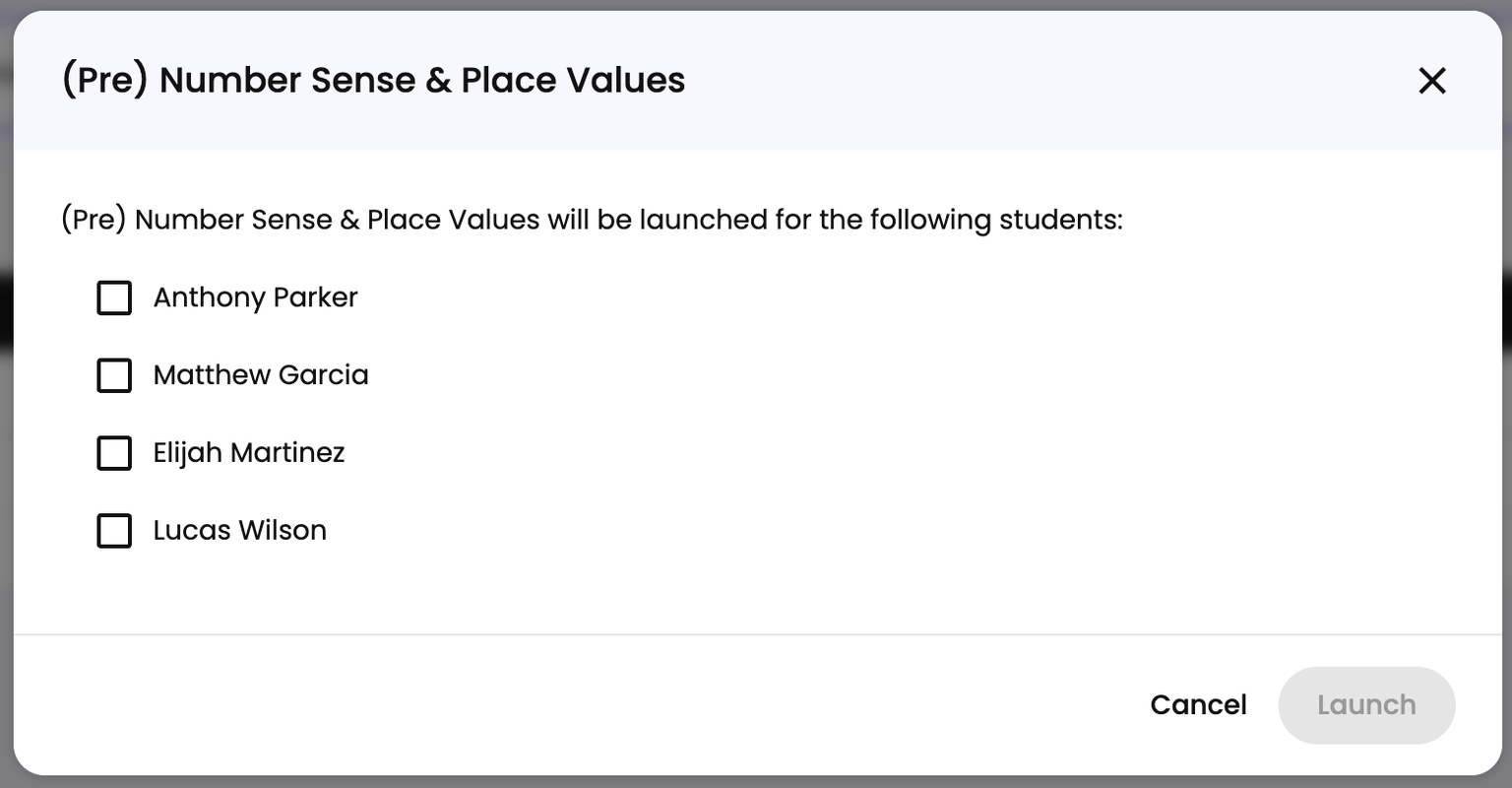
Spark asks you to confirm and shows you exactly who it’s launching for, with a Students list you can edit. Spark fills the list in for you, but check it before you go, and take anyone out who shouldn’t be included.
Click Launch. Students’ screens open to the first question, and a live results table appears below so you can follow along. See Reviewing Assessment Results.
Launching an Activity
Activities all share one Activities tab. The Select Activity Step dropdown already has Spark’s Suggested next step chosen for you, so usually you confirm it and launch. Pick a different activity if you’d rather - see Your Session Agenda.
The tab tells you where you are:
- Nothing chosen yet, and it reads “Select an activity in the dropdown above to get started.”
- Chosen but not launched, and it reads “Press the launch button above to start this activity.”
- Launched, and you get a question-by-question table showing what each student picked.
Assessments You Read Aloud
Assessments tagged Tutor Administered work differently. Rather than launching for everyone, you pick one student at a time and work through the questions with them, recording each answer yourself. A question counter keeps track of where you are.
Choose View All Results instead of a student name to see the live results table for the whole group.
Controlling What Students See
For online sessions you get controls over each student’s screen.
With one student, you’ll see a toggle reading Name’s Drawer, where “drawer” means the panel on their screen. Flip it to open or close what they can see.
With several students, Drawer Controls opens a list of everyone with a toggle each, plus Open All and Close All at the bottom.
Toggles pause for a few seconds after you flip them while the change reaches the student’s device. That’s normal, not a stuck button.
For in-person sessions these controls don’t appear, because students are working in front of you.
Common Issues
A Student’s Screen Didn’t Open
Launching opens the student’s screen automatically, but only for students included in the launch. Check the Students list you confirmed. If someone was left out, launch again for them.
I Need to Launch Something Else Instead
Launching one thing doesn’t lock the others. Go to another tab and launch from there. To change the plan itself rather than what’s launched, use Need to Make Changes to the Above? on the agenda. See Your Session Agenda.