
Step 8: Clear Your Action Items
Action Items sits on the right of your Dashboard and gathers the loose ends. Clearing it once a day, ideally at the end, is the whole habit. When it is empty, you are square with the system.
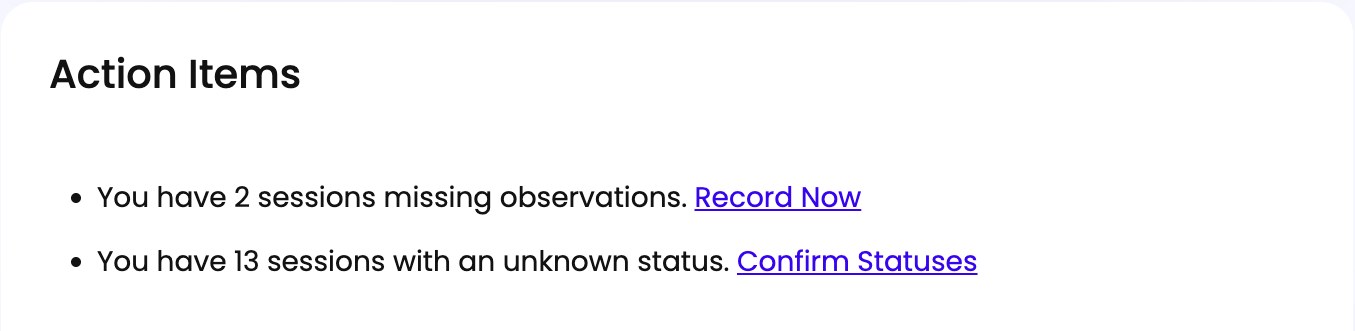
Three Kinds of Item
Students missing consecutive sessions, with how many each has missed. Review Session History opens that student’s history so you can see the pattern rather than just the count.
This is the one to act on outside Spark. A student missing three sessions in a row is usually a scheduling or attendance problem that needs a conversation with the school.
Sessions missing observations. Record Now opens them as a list with an Edit Observations button on each, so you can work through several without finding each session on your calendar. See Step 7.
Sessions with an Unknown status. Confirm Statuses opens them as a list with an Edit Status button on each. Unknown means the session’s time passed with no assessment or activity data attached, so Spark is asking whether it happened. Worth clearing promptly, because a schedule full of them makes your reports less useful.
The Numbers Above It
Four figures sit above Action Items, each linking somewhere useful: Assigned Students, Groups, Avg. Attendance, and Avg. Sessions / Week.
Both averages read N/A until there is enough data to calculate them, which is normal early in a program.
That Is the Loop
You have seen the whole day. From here, the reference sections have the detail on any one step, and these are the things you will reach for next:
- Reading the My Students Table when you want to check on a student.
- Group Details Overview when you want to see where a group stands.
- Session History for a Student or Group when you need to know what has already been taught.
- Where to Find Help in the Platform when you are stuck.