
Your Daily Schedule on the Dashboard
The Dashboard opens to today’s schedule. Each session you’re scheduled to teach shows up in time order, with the students or group on the left and the lesson assignment and status on the right. This is your home base for the day - starting a session, assigning a lesson to an upcoming one, and recording observations afterward all happen here.
Reading a Session on Your Schedule
Every session on the schedule appears at its scheduled time. The left side tells you who and when. The right side is where you act on it.
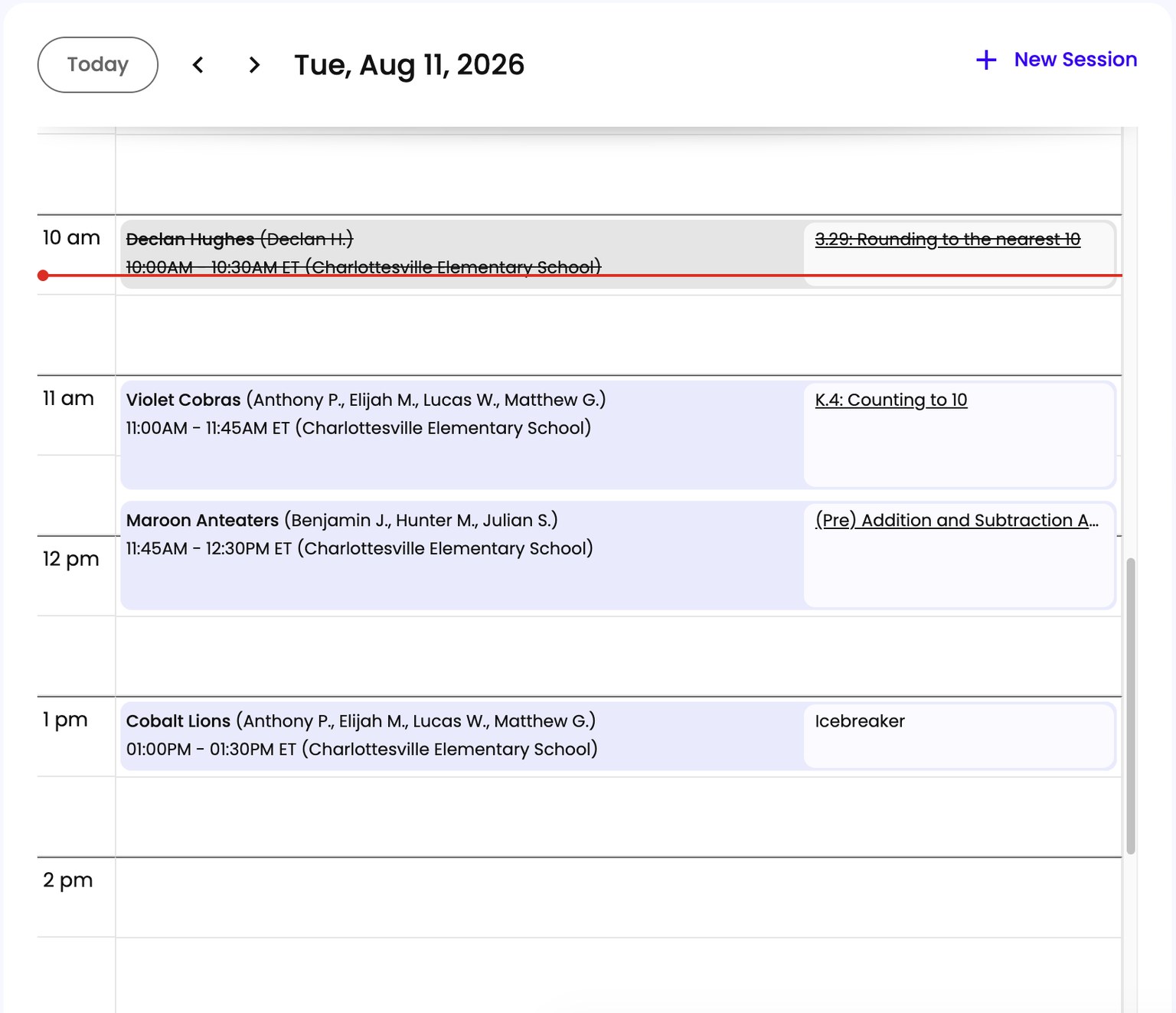
The left side shows:
- Time. Start time and end time (for example, 8:05 to 9:03 am). If you’re assigned to more than one school, the school name follows the time.
- Participants. If the session is with a group, the group’s name shows first, followed by the student list. If the session is with one or more individual students, just the names show. Long lists get cut off with three dots - hover to see them all.
The right side shows:
- Lesson assignment. If a lesson is assigned, its name appears here. If no lesson is assigned yet, you can assign one from here - see Assigning a Lesson to an Upcoming Session.
- Status or follow-up. After a session’s scheduled time, the right side updates based on what happened:
- If the session happened but you haven’t added observations, you’ll see Observations: Complete Now. See Adding Observations After a Session. Once they’re recorded the prompt disappears, so nothing showing means nothing outstanding.
- If Spark can’t tell whether the session happened, you’ll see a prompt to confirm it. See Confirming Whether a Session Happened.
Moving Between Days
Step back or forward one day at a time using the controls next to the date. A date picker lets you jump straight to a specific day, past or future. The Today button brings you back to the current day.