
Assigning a Lesson to an Upcoming Session
Most of the time you won’t need this. Spark assigns content to your next session automatically, based on where your group is in the curriculum - see How Content Gets Assigned to Your Sessions.
This article is for when you want something different. Auto-assigned content shows as read-only on the session, with edit controls appearing when you hover over it, because it’s an assignment that’s already been made rather than one waiting on you. Changing it takes you into the Assign Lesson form, which is also where you land when you set content while scheduling a new session.
For a Session Already on Your Schedule
Three ways in, and all put you straight into the form:
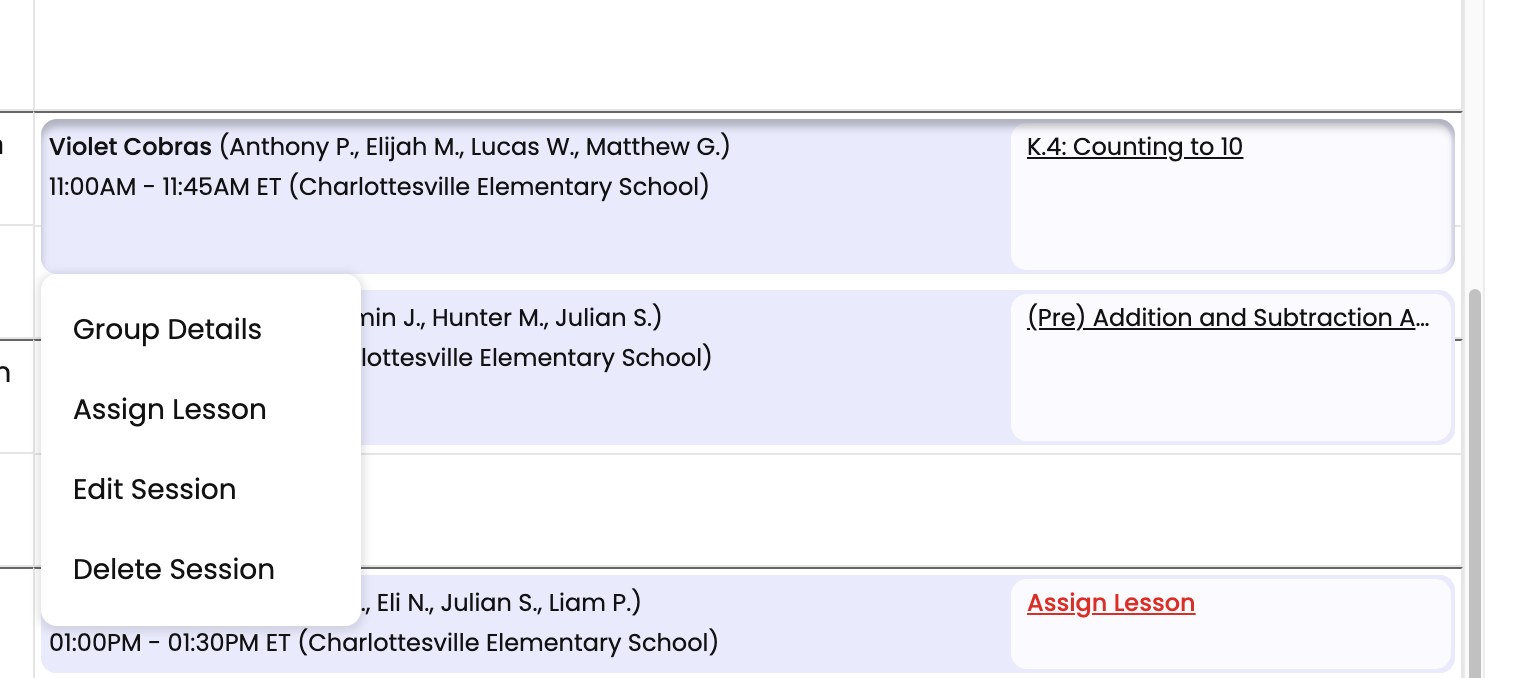
- From the session itself. Hover over the assigned content on the session to reveal the edit control.
- From your daily schedule. Find the session in Today’s Lessons on the Dashboard. If no lesson is assigned, Assign Lesson appears in the Assigned Lesson column.
- From the Up Next banner. When your next session has no lesson set, the banner’s action reads Assign Lesson. See The Up Next Banner.
While Scheduling a New Session
Scheduling happens in two steps before you get to the lesson.
Step one asks for the Date, the Time (a start and an end), the Program, and the Students / Group. Use Add Students or Groups to pick who’s attending. Add more than four students and you’ll see a note that “Braintrust recommends 4 students max for the best learning outcomes.” It’s guidance, not a limit. Click Next.
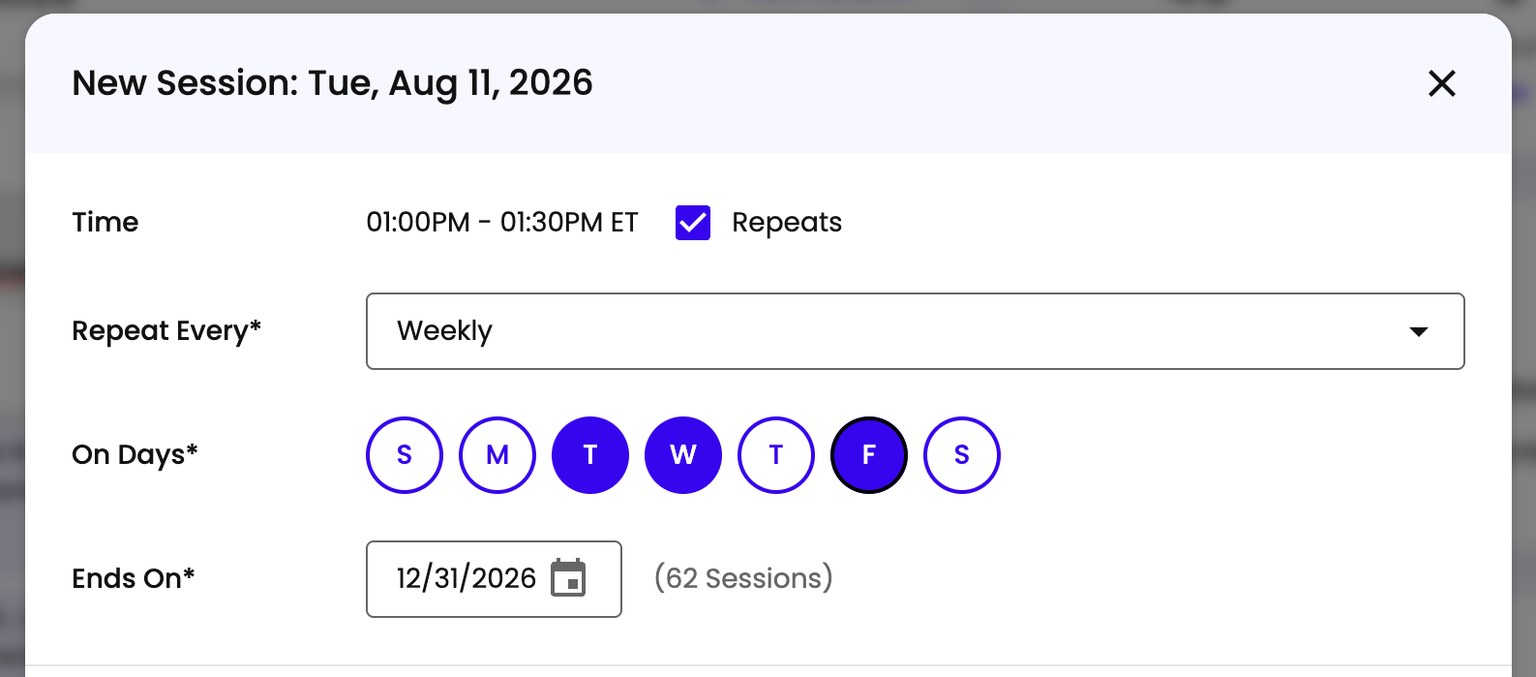
Step two is recurrence, and Repeats is checked by default:
- Repeat Every - Weekly, Every Other Week, Every 3 Weeks, or Every 4 Weeks.
- On Days - pick the days of the week.
- Ends On - the last date. Spark shows how many sessions that adds up to.
If you only want a one-off, uncheck Repeats.
This step is also where Spark flags attendees who aren’t in the group you picked. With a few of them it names who, and with more it just says they aren’t currently in a group. You choose between Just these sessions (or Just this session if you’ve turned recurrence off) and Add to group, which adds them for good.
Spark preselects whichever matches your recurrence: with Repeats on it assumes Add to group, and with Repeats off it assumes the single-session option. That’s usually what you want, but check it before moving on if you’ve changed your mind about recurrence.
Then click Save & Close to create the session (or sessions). Spark auto-assigns content to the next session for you - see How Content Gets Assigned to Your Sessions. If you want to override what Spark picked, use one of the three routes in the section above.
What the Assign Lesson Form Looks Like
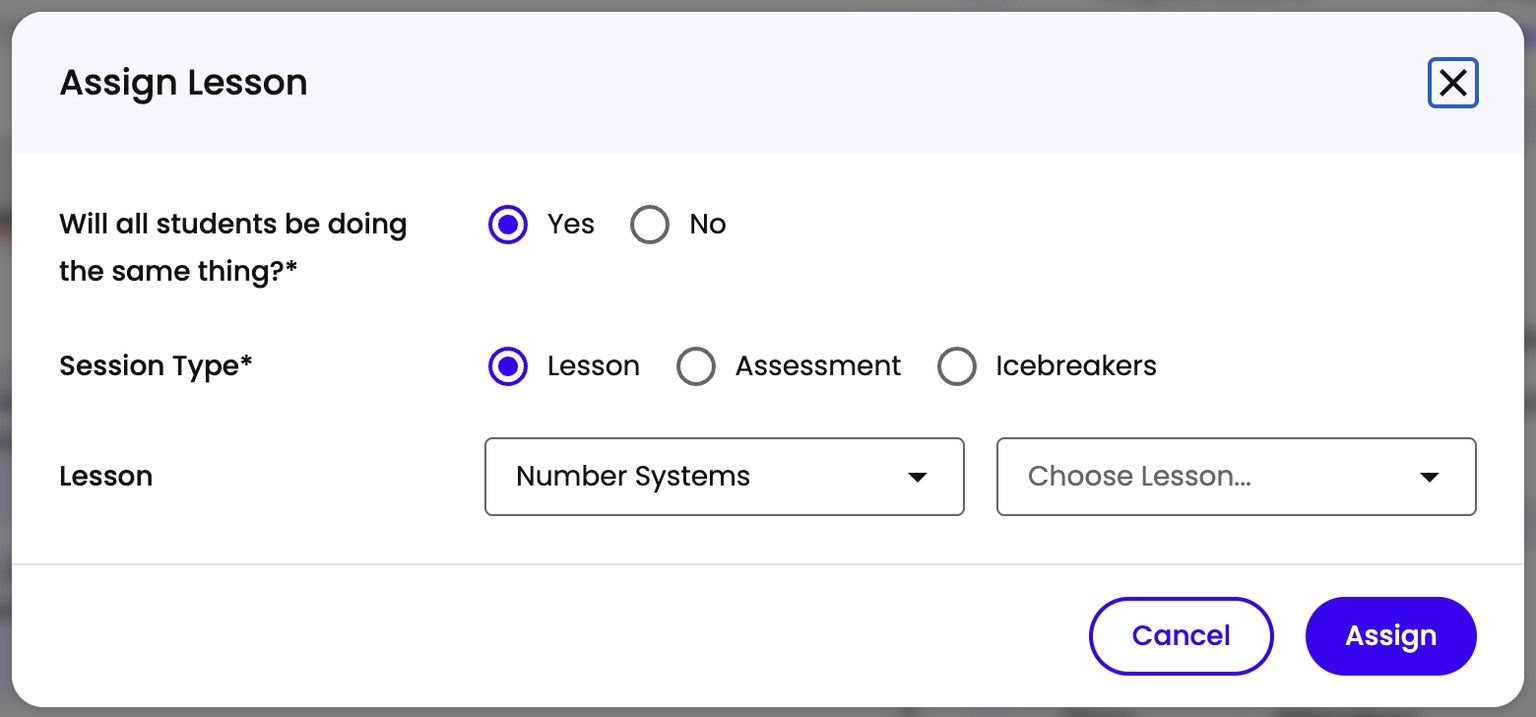
Any of the three override routes above opens the same form. It starts with Will all students be doing the same thing?
- Yes gives you one Session Type for the whole session: Lesson, Assessment, or Icebreakers. Pick a type, then the specific lesson or assessment.
- No gives you a row per student where you choose their type and, for anyone on an assessment, which one. Students doing a lesson all share the same lesson, so this is how you put one student on an assessment while the rest carry on with the lesson. Icebreakers aren’t available per student, only for the whole session.
Lessons are organized by level, so you pick the level first (for example “Level 1: Consonants”) and then the lesson inside it (for example “1.1: a, m, t, s”).
If students didn’t master the previous lesson, the form opens with a red note naming those students and flagging that they still need to work on that lesson, and it pre-fills the lesson for you. Change it if you’d rather move on.
When you’re done, click Assign.
Common Issues
Assessments Can’t Be Changed
If a student has already submitted an assessment for the session, the form tells you assessments can’t be modified. Submitted work is fixed.