
Viewing Your Schedule by Month, Week, or Agenda
The Dashboard shows one day at a time. The Schedule page, in the left sidebar, shows the bigger picture: every session you teach across a full month, a week, or any date range you choose. It’s the place to plan ahead, look back, or find a session without stepping through the Dashboard one day at a time.
Choosing a View
The Schedule page has three views. Switch between them with the Month, Week, and Agenda tabs at the top of the page.
- Month - a full calendar month, one box per day.
- Week - one week at a time, one box per day.
- Agenda - a list of your sessions by date, for any date range you pick.
All three show only the sessions you’re assigned to teach.
The Month View
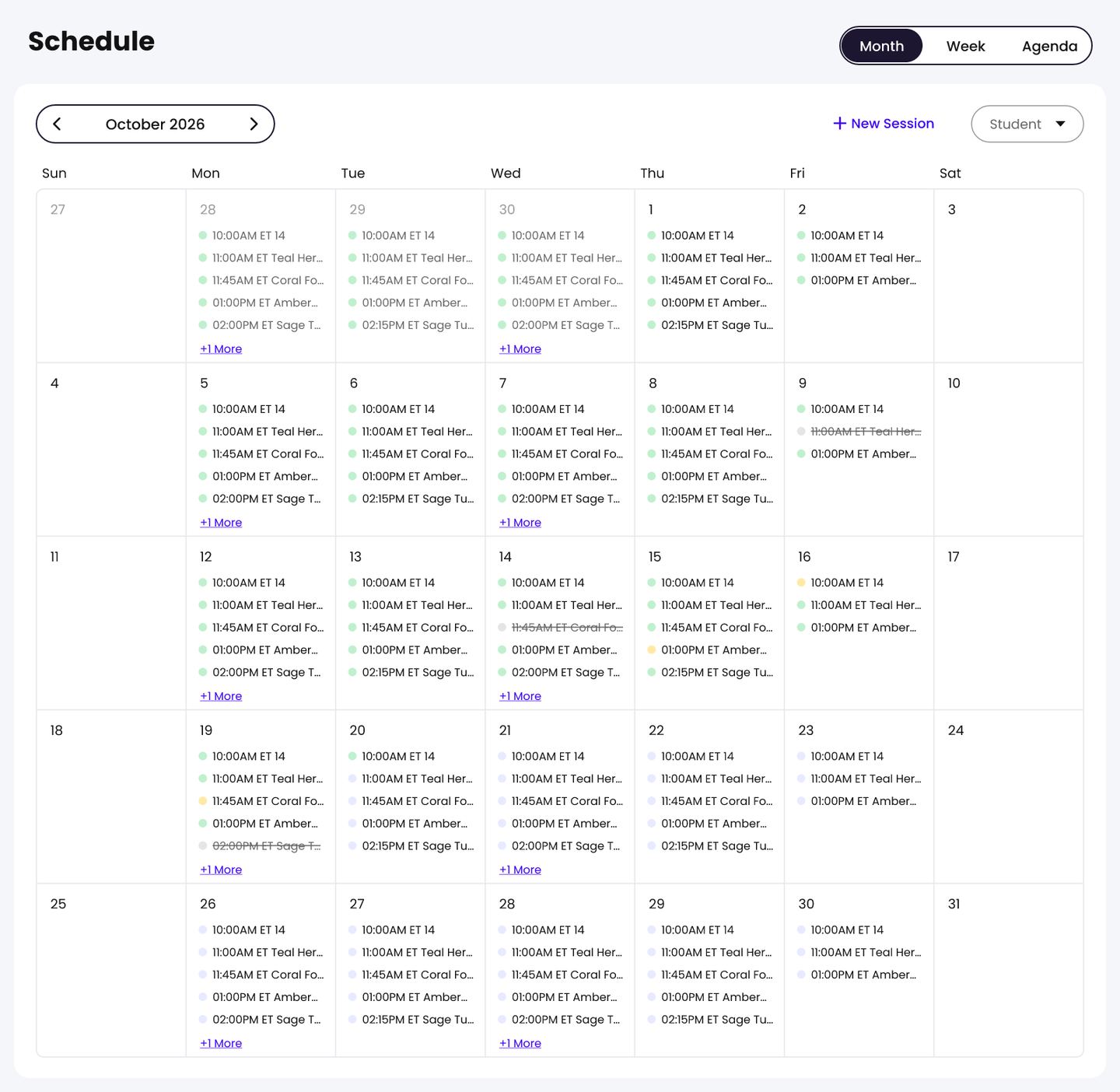
Each day box shows the date and the sessions scheduled that day. Each session shows:
- A status dot in the session’s status color. The Session key below the calendar explains each color. See What Each Session Status Means.
- The start time.
- The group name.
Canceled sessions are crossed out, so you can tell at a glance which ones didn’t happen.
When a day has more sessions than fit in its box, a + More button appears at the bottom with the number of sessions not shown (for example, +2 More). Click it to see the full list for that day.
Moving Between Months
Use the arrows on either side of the month name to go back or forward one month. Click the month name itself to jump back to the current month.
The Week View
The Week view shows one week, one box per day. Each session shows its start time and group name, shaded in its status color, and a + More button appears when a day has more sessions than fit. Use the arrows on either side of Week of to move back or forward a week, and click the Week of label itself to jump back to the current week.
The Agenda View
The Agenda view lists your sessions in a table, grouped by date, with the time and group for each one. Each group name is colored by the session’s status, and canceled sessions are crossed out.
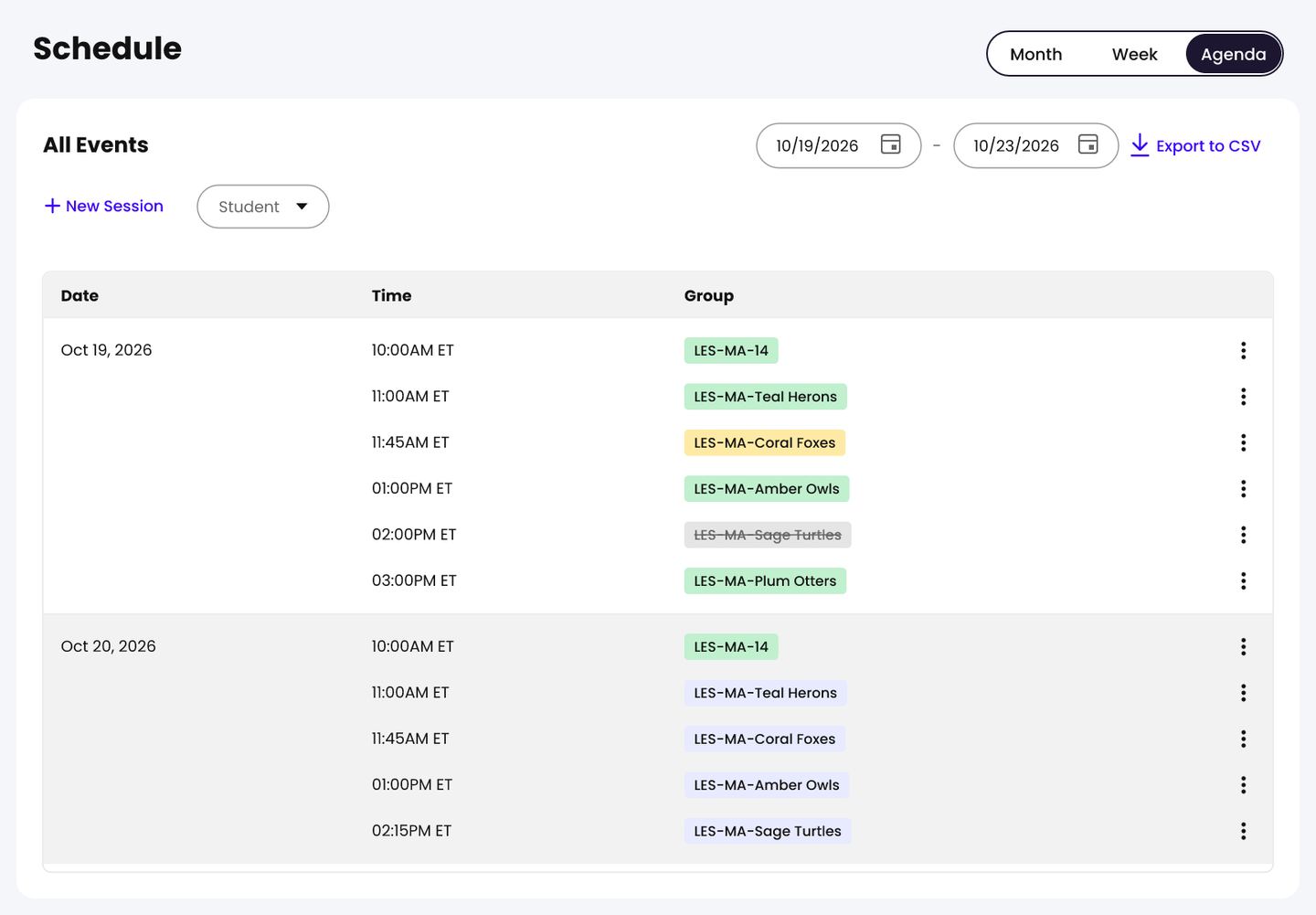
- Set the dates. Choose a Start Date and an End Date at the top of the list. The table updates to show every session in that range.
- Export it, if you need a copy. Click Export to CSV to download the sessions in the range as a spreadsheet.
Acting on a Session
In Month or Week view, click any session to open its menu. In Agenda view, click the three dots at the end of the session’s row. The options depend on the session’s timing and status:
- Group Details - opens the group’s page. For a one-student group, this reads Student Details and opens the student’s profile.
- Assign Lesson - set or change the session’s lesson. See Assigning a Lesson to an Upcoming Session.
- Edit Session - change the session’s date or time.
- Delete Session - for upcoming sessions only. See Making a One-Time Change to Your Schedule.
- Change Status - for sessions whose time has passed. See Confirming Whether a Session Happened.
- Edit Observations - for finished sessions that students attended, until the week closes on Saturday. See Adding Observations After a Session.
You can also join a session from its menu here, though the main way to start one is Start Session on the Up Next banner. See Starting a Session From Your Dashboard.
Filtering the Calendar
Use the filters at the top of the calendar to narrow what you see:
- Student - show only the sessions for the students you pick.
- School - if you’re assigned to more than one school, show only the sessions at the schools you pick.
Filters apply in all three views.
Adding a Session
Click New Session at the top right of the calendar to schedule a session. See Making a One-Time Change to Your Schedule.