
Step 2: Read Your Schedule
Your sessions run down the middle of the Dashboard in time order. Each one splits the same way: who and when on the left, what needs you on the right.
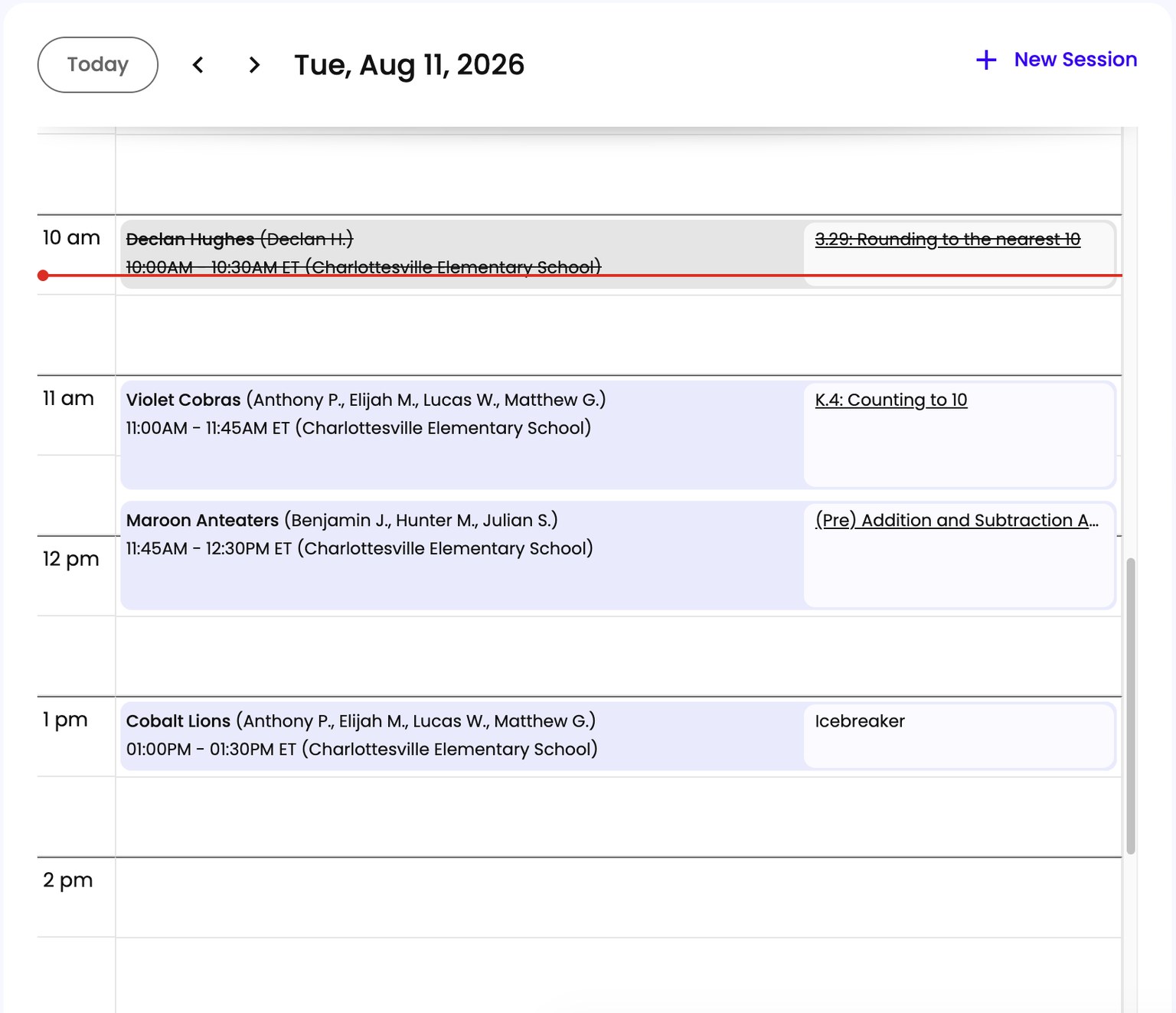
The Left Side
- Time. Start and end. If you work at more than one school, the school name follows the time.
- Who. The group’s name and the students in it, or just the names for individual students. Long lists get cut off with three dots, so hover to see everyone.
The Right Side
- The assigned lesson or assessment. Spark puts this there for you. See Step 3.
- Anything still owed. After a session’s time has passed, this is where Spark asks for what is missing - observations, or confirmation that the session happened.
The Colors Mean Something
Sessions are color-coded by status, and the key sits below your calendar. Three of the four are just records of something settled:
- Pending - scheduled, has not happened yet.
- Finished - it happened.
- Canceled - it did not happen.
Unknown is the only one that asks anything of you. It means the session’s time passed and Spark cannot find any assessment or activity data attached to it, so it cannot tell whether the session happened off-platform or did not happen at all. Clearing those is part of Step 8.
Moving Between Days
Step back and forward a day at a time with the controls next to the date, jump to a specific day with the date picker, or press Today to come back.
Next
Step 3: Check What’s on the Session