
Step 1: Start Your Day on the Dashboard
Sign in and you land on the Dashboard. It opens to today, which means you do not have to go looking for your day - it is already in front of you.
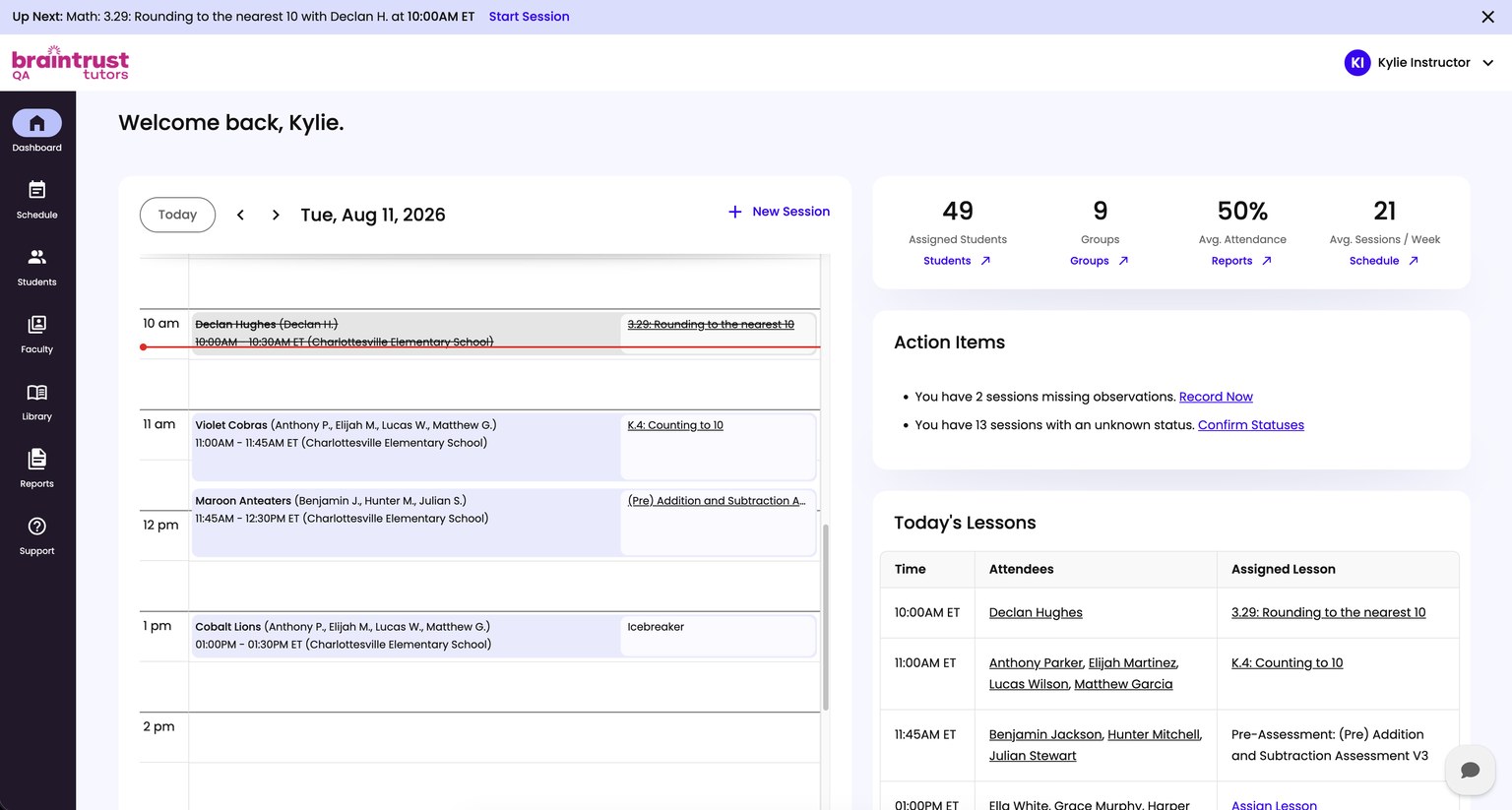
Three Things on This Screen
Everything in this walkthrough starts from one of these.
- The Up Next banner, across the top. Your next session, who is in it, what they are working on, and the button that starts it.
- Today’s sessions, down the middle, in time order.
- Your numbers and Action Items, down the right. Action Items is where Spark collects anything it is waiting on you for.
What to Do First
Glance at the Up Next banner. If it names a session and a lesson or assessment, you are set for the next thing on your day and nothing needs doing.
Then look down the right at Action Items. If it is empty, you are square with the system. If it is not, that is your end-of-day list rather than something to handle now. See Step 8.